
Seven Samurai
1954 · Movie

Cinema HD
Browse the titles. Keep your favorites. Find the right app and playback answers for your screen.

Android, Fire TV, computer, and iPhone questions, answered in one guide.
1954 · Movie

2023 · Movie

2016 · Movie

1995 · Movie
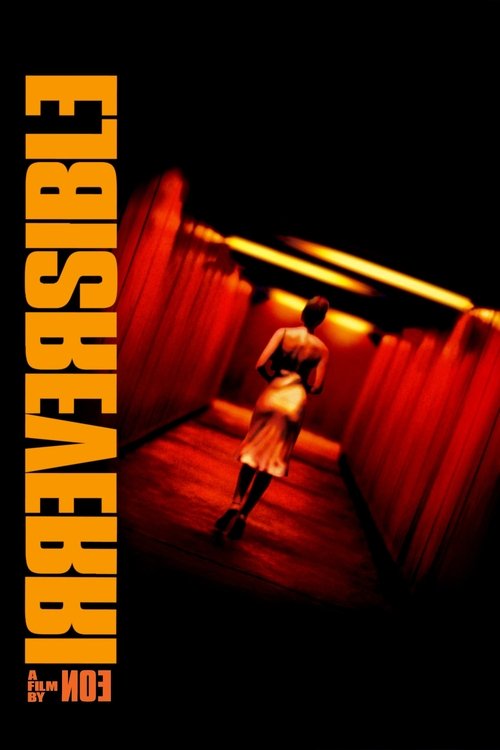
2002 · Movie

1986 · Movie

2025 · Movie
2023 · Movie

2023 · Movie

2023 · Movie

2019 · Movie

2017 · Movie

2013 · TV Series

2011 · TV Series

2023 · TV Series

2009 · TV Series

2020 · TV Series

2017 · TV Series
2009 · TV Series
2023 · TV Series

1995 · TV Series
1995 · Movie

2004 · TV Series
1954 · Movie
Understand the Android app name, APK searches, and the Cinema HD features available on this website.
Read guide →Separate web browsing from native app compatibility before choosing your device setup.
Read guide →Find the failing step before changing the app, browser, or viewing service.
Read guide →Understand language tracks and resolution before troubleshooting a viewing session.
Read guide →A film can start with a village preparing to defend itself, a family secret that refuses to stay buried, or a child following a mysterious bird into an unfamiliar world. Cinema HD puts those possibilities within a few poster taps. Browse movies and TV shows, find the name a friend recommended, and keep the titles you want to return to. The next step should be choosing a story, not losing the evening inside a device settings menu.
Our compact catalog gives you a practical place to begin. There are separate movie and television views, genre and year filters, title descriptions, and My List for saving favorites in your browser. Watch now takes your choice to JustWatch for the country you select. The viewing service supplies the video and its playback options. You can decide what to watch here, then continue with the screen and offer that suit you.
Cinema HD also brings particular questions about Android apps, Fire TV, APK versions, subtitles, and missing links. This guide connects those questions to everyday viewing. Start with the catalog if you want a film; jump to the device or playback section if something is getting in your way.
Open Cinema HD Movies when you want a complete feature rather than another episode. A poster can establish a mood, but the title page explains what the film is about. Read the premise, look at the release year, and compare the genres. Those details help distinguish a tense mystery from a broad adventure even when both use dramatic artwork and an action label.
Seven Samurai offers one starting point: a threatened village recruits protection and must participate in its own defense. Godzilla Minus One begins in the aftermath of war and confronts its survivors with another catastrophe. Both involve people responding to overwhelming danger. One may appeal when you want human alliances and preparation; the other may suit a night when you want disaster on a much larger scale. The connection is a reason to inspect both, not a claim that they offer the same experience.
Try limiting the first decision to three possibilities. Open their descriptions, keep the strongest candidate, and save the other two. You can return to browsing if none fits, but a smaller shortlist makes it easier to move from interest to a real choice. When watching with someone else, share the premise without revealing the turns of the story. Let the people watching decide whether the subject fits the evening.
The TV Shows page separates television from films. That matters when a familiar name belongs to more than one format. A show page identifies the production as a whole; the service you choose provides its available seasons and episodes. Check both the season number and episode title there before resuming. A release year on a catalog card usually identifies the beginning of a series, not the date of the latest episode.
The Apothecary Diaries follows Maomao into palace life and medical mysteries. Monster centers on a surgeon whose connection with a former patient turns his life upside down. Those premises offer two very different ways into a mystery series. One invites interest in observation and court surroundings; the other begins with a deeply unsettling professional connection. Browse the description before treating the shared category as a complete recommendation.
For a long-running show, decide how you want to watch it. You might be beginning from the first episode, returning after a break, or catching up with a particular season. Keep that intention with the title when opening viewing offers. A page for the overall series does not establish that every episode is included. Save the show here for easy return, and use the viewing service's history for your last playback position.
Use Search for an exact title, part of a title, or the original name shown in the catalog. Short queries are often easier to correct. If you remember The Invisible Guest, begin with those words. You do not need to add Cinema HD, free streaming, full movie, or a device name to the title field. Those phrases describe the experience you want, not the name the catalog is trying to match.
Format, genre, and year help when the first result set is broad. Choose Movies for a feature or TV Shows for a series, then add another filter only if it helps. If nothing appears, remove the narrowest filter first. An uncertain year can hide the very title you are looking for. A genre can also be less obvious than expected when a production combines animation, drama, mystery, and romance.
Read the year and synopsis before following a familiar poster. Remakes, adaptations, sequels, and unrelated productions can share words in their names. The original title is another useful clue for international films. If a friend sends a translated name, ask for the year or a short description rather than guessing among several results. The purpose of search is to identify the production clearly enough that the next viewing choice is about the right film.
The genre directory provides a different entrance when you have no title in mind. Action can mean a samurai ensemble, a monster attack, or an animated science-fiction conflict. Mystery can involve an investigation, a family history, or a character whose own perceptions become uncertain. Select the category that interests you, then read a few descriptions to discover the particular kind of story each film offers.
Perfect Blue and Castle in the Sky both appear within animation, but their premises point toward very different evenings. One follows a performer's increasingly troubled reality; the other follows young travelers and a magical crystal toward a legendary castle. Animation describes how a film is made, not a universal age recommendation or emotional tone. If choosing for children or a mixed-age group, check the viewing service's classification and content details for the exact production.
Combine categories as ideas even when browsing one filter at a time. If you enjoy mysteries but want animation, inspect animated titles with mystery or thriller labels. If you prefer romance with comedy, look for that combination in the description. Keep the filters useful rather than exhaustive. A film does not need to match every label you usually choose to be a promising discovery, and an unexpected premise can be more persuasive than a perfect category match.
A release-year view is helpful when you remember when a film appeared or want to explore a particular period. Cinema HD includes productions from different decades. Seven Samurai is a 1954 film; Castle in the Sky belongs to 1986; Anatomy of a Fall appears as a 2023 release. The years help you place the productions without deciding in advance which one deserves your attention tonight.
An older release is not automatically a poor-quality viewing choice. The presentation available today depends on the edition and service. Similarly, a recent film is not automatically available in every country or included in a subscription. Use the year to identify the work, then inspect the actual offer for resolution, language tracks, and access. The catalog date and the date a service made an edition available answer different questions.
For a varied shortlist, save one recent discovery and one older film you keep meaning to watch. You can choose between them when you know how much attention and time you have. This is particularly useful when several people share the decision: one person may recognize a new title while another has wanted to introduce an older favorite. The list keeps both possibilities visible without making age itself the reason to accept or dismiss a movie.
The Trending page and top-rated view provide quick ways to inspect titles that stand out in this catalog. The displayed community scores come from TMDB. Read them as TMDB ratings rather than assuming that a familiar Top IMDb navigation phrase changes their source. A rating can help you notice a production, but the premise should still tell you whether you want to watch it.
Two people can respond very differently to the same highly rated film. One may love a slow-building mystery; another may want immediate action. A strong average does not settle runtime, language, subject matter, or the kind of attention the film asks for. Compare the score with those practical preferences. The useful question is not only whether others appreciated a title, but whether it fits what you are choosing now.
Popular rows also have a limited purpose. They help you scan a selection; they are not a promise that every film on the internet is represented or that a title became available this morning. If a name interests you, open it. If nothing does, switch to a genre or use your saved list. Moving between a popular row and a deliberate search is part of ordinary browsing, not a failure to find the one recommendation you were supposed to accept.
Cinema HD is free to browse. Searching titles, reading descriptions, following categories, and keeping My List do not require a paid account here. When you choose Watch now, compare the viewing offers for that production in your selected country. Free movies online may be available through free or advertising-supported offers where listed. A subscription, trial, rental, or purchase is a different arrangement, even when all appear beside the same film.
Look at what the offer includes before deciding. A free episode may introduce a show without covering the rest of its season. An advertising-supported film may include breaks. A service you already subscribe to may also sell titles outside the subscription. These distinctions are worth checking at the moment of viewing, especially when a recommendation comes from someone using a different service or living in another country.
Choose according to the whole evening, not just the first price label. Captions in your preferred language, compatibility with the television, and the available edition may matter as much as cost. If no suitable offer appears, save the title and try another film for now. Your interest can remain on the list while availability changes. Browsing does not obligate you to start a subscription or accept an offer that does not suit the people watching.
The Country page controls the region used by watch links. Set it for the place where you want to check viewing options. This is different from choosing films made in a particular country. A Japanese movie can have offers in several markets, while the language and edition supplied by each service may differ. The selected region helps make the next search relevant to your viewing situation.
Changing that preference is useful when the service choices look unfamiliar or a friend's offer is missing. It does not move an account to another country or change a provider's access rules. The preference is kept in this browser, so another device may begin with a different selection. Check the country again when moving from a shared computer to a phone or following a saved title after traveling.
International browsing also rewards careful title matching. A film can have an English title, an original-language name, and another local release title. Keep the year and premise with the name when comparing results. For language needs, continue to the selected edition's audio and subtitles. A country setting answers where to look for offers; it does not automatically choose a dub, provide every subtitle language, or establish which version of a film you will see.
Use Save on a title you want to revisit, then open My List to see your choices together. It is an easy place to keep the film mentioned during lunch, the series you want to start after finishing another, and the animated feature you noticed while searching for something else. You do not need to remember every spelling or keep dozens of tabs open.
The list belongs to the browser where you make it. It is not a synchronized Cinema HD account, an imported Android-app favorites folder, or a record of what an external player has finished. Clearing this site's browser data can remove the entries. If you rely on a shortlist for travel or a group screening, also keep the names and years in a note you can access independently.
A useful watchlist remains small enough to browse. Remove a title when you are no longer interested, and keep a few different kinds of choices rather than treating every interesting poster as an urgent task. You can save a serious drama for a quiet evening and an adventure for company. The list works best as a set of possibilities you still want, not an obligation to finish everything you once considered.
Cinema HD is closely associated with Android app use, and many visitors arrive looking for the Cinema HD APK, a stable version, or an update. An APK is an Android installation package, as explained in Android's application documentation. It installs software on a compatible Android device. It is not the movie itself, and it does not turn an unrelated operating system into Android.
Our Cinema HD app guide explains the browser features available here. You can search, browse, and save titles without downloading an installer. This website does not distribute a native Cinema HD APK or label an untested binary as the latest stable release. If you already use a separately installed app, its publisher, version, settings, and supported devices determine that app's behavior.
Keep browser access and app installation separate when asking for help. A website opening normally does not prove an installed package will launch, and an app error does not mean the catalog is unavailable. Write down the version displayed inside the app if that is where the problem occurs. For a movie recommendation, use the title page instead. You can continue deciding what to watch while dealing with a device-specific issue on its own terms.
Version words are useful only when they refer to a particular app and publisher. Cinema HD V2, stable APK, latest version, and downloader code can lead to different pages describing different packages. A larger version number by itself does not prove that an app is compatible with your device or belongs to the same release line you already use. Begin with the information shown in the installed app, not an unrelated screenshot of a download button.
A downloader code is a shortcut used by a particular downloading tool to reach an address. It is not a movie title, a subscription, or an independent guarantee about the file at that address. A code copied from an old discussion may no longer lead to the same resource. Cinema HD browsing here needs no code: open the movie or TV catalog directly, then save the production you want.
If you are comparing app versions, preserve your important favorites before changing anything. Read the publisher's release notes for the issue you actually have, such as subtitle selection or launch compatibility. An update intended for one environment may not explain a problem in another. Avoid treating an old-version download as the default answer to every error. For this browser catalog, reloading the page retrieves the available website; there is no separate APK update required to see it.
People often say Firestick as though every device has the same software. Check the exact model before following app instructions. Amazon introduced Fire TV Stick 4K Select with Vega OS, as documented in its Vega announcement. That is a reason not to apply an older Android-based Fire OS tutorial to every newer Fire TV device.
For Cinema HD Firestick questions, write down the model, operating system, and installed app version. Then identify what fails. Is an app absent from the launcher, unable to install, opening to a blank screen, or unable to play one chosen title? These are different situations. A successful film search on your phone can help you keep the viewing plan moving, but it will not change which packages the television device supports.
Once you have chosen a film, use a viewing service supported by that device. A TV app designed for a remote usually makes selecting episodes and subtitles more comfortable than navigating a phone-oriented page from the sofa. Keep the production's exact name and year handy so you can find the same edition. If a device reports an app as disabled or unsupported, use its current support information rather than assuming another downloader code resolves the platform restriction.
Open Cinema HD in your regular Android browser to inspect the catalog and keep your list close at hand. The compact poster layout is useful when you are comparing a few titles on a phone. A tablet gives descriptions more space, which can be helpful for a shared choice. Use the menu to reach Movies, TV Shows, genres, and app information without trying to navigate every homepage section first.
A home-screen shortcut, where your browser supports one, can make returning more convenient. It opens the website rather than creating a separate collection of downloaded movies. Use the same browser context when you want the same saved list. A link opened inside a messaging app may behave differently from the browser you normally use, particularly when it keeps its own browsing data.
For mobile streaming after choosing an offer, check the provider's supported Android app or browser. It may offer data-saving controls, offline viewing, or particular subtitle options, but those belong to that service. Before a long session away from home, consider battery power, connection stability, headphones, and the amount of mobile data available. The best setting for a television on home Wi-Fi is not automatically the best setting for a phone moving between networks during a journey.
Use the Cinema HD website in an iPhone or iPad browser to search movies, read title pages, and save a local list. An Android APK is not an iOS installation file. You do not need to convert one just to browse these pages. If you prefer an icon on your home screen, Apple explains the supported Safari process in its website-to-app guide.
Keep your viewing setup simple. Find the production here, check its year and description, and choose the regional offer. The selected service's iPhone or iPad app can provide its own playback experience when supported. A service may open a browser page first and then invite you into its app. Confirm the title after that transition, especially if several versions or similarly named results appear.
On a small screen, readable captions and clear audio often matter more than pursuing the largest resolution label. Try a comfortable orientation and text size where the player permits them. If you move to a television, use a method supported by the service and receiving device rather than assuming every video can be mirrored. Your saved Cinema HD titles remain a browsing aid; the player's progress and any downloads are managed separately by the viewing application.
Cinema HD for PC begins with a browser. You can search and read this catalog on a computer without installing an Android emulator. A larger screen gives you room to compare descriptions, dates, and related genres. Open only a few promising titles at a time, then save the ones you want. A clear shortlist is easier to use than a browser full of nearly identical poster tabs.
After choosing a service, check its supported browser, account, and video requirements. Desktop playback can differ from a native television app. A title offered in high resolution may still depend on the computer, browser, display connection, and plan. Use the service's stated requirements when troubleshooting instead of assuming the computer's screen resolution alone establishes the video quality you are receiving.
Keyboard shortcuts can make a long viewing session more comfortable, but use the player's own help or visible controls to learn them. A key that controls one player may do something else in another, particularly while a search field has focus. Confirm the active audio output before beginning if headphones, speakers, and an external display are connected. Choosing a movie should not require changing an otherwise working computer setup; adjust the part relevant to the viewing service you actually selected.
Smart TV describes a category of devices, not a single app platform. A Roku television, an Android-based television, and another manufacturer's system may offer different apps and controls. Our device guide helps separate those questions. Browse on whichever screen is easiest, then use the viewing service's supported app on the device connected to your television.
Roku provides apps through its own store and device interface; its app installation guide describes the supported process. An Android package is not a universal installer for Roku or a game console. Look for a service available on the device you own rather than spending the evening trying to make a phone package behave like a television app.
Before pressing play, check the basics on the actual TV. Can you select the intended episode, read the captions from your seat, and hear dialogue clearly? Does the remote bring up the controls you need? If using a console, confirm that the viewing service supports its app there. The right setup is the one that lets everyone watch comfortably. A familiar app name matters less than reliable navigation, the correct title, and the language and picture options available on that screen.
HD, 1080p, and 4K describe different levels of picture resolution. They are useful when comparing a viewing edition, but the Cinema HD name is not a technical guarantee for every title. Check the service's quality label and the requirements for your device and plan. An offer may provide HD on one setup and a higher-resolution edition on another supported setup.
For a concrete service-specific example, Netflix's speed guidance recommends a stable 3 Mbps for 720p, 5 Mbps for 1080p, and 15 Mbps for 4K. Those are Netflix recommendations, not universal promises for every player or movie source. Use the equivalent information from the service providing the film you choose.
Resolution is only part of the result. Compression, the source edition, display settings, and the viewing distance all influence what you see. A stable 1080p presentation can be more enjoyable than a 4K option that repeatedly stops. Give automatic quality a chance to settle where the service supports it, and inspect the actual player information if the picture remains disappointing. Do not change a movie's genre filter or catalog country expecting it to sharpen an already playing video. Picture controls belong where the video is being delivered.
A quick-loading poster grid and a smooth two-hour film place different demands on a connection. Cinema HD catalog pages help you choose a title; the selected viewing service handles video delivery. That service may use adaptive bitrate playback to change quality as conditions change. It may also use a content delivery network to distribute video closer to viewers. Neither feature can be inferred simply from a fast homepage.
If the service offers automatic quality, try it before forcing the largest available format on an unstable connection. When interruptions persist, check whether other activity is competing for bandwidth and whether the same issue happens on another supported device. Make one relevant change at a time. That makes it easier to understand what helped rather than leaving several changed settings and no clear explanation.
Cinema HD streaming servers and backup-source questions usually concern the player or an installed app. This website does not provide its own server selector. Use a service's supported alternate source or playback option where it actually exists, and check the language and edition again after changing it. Another server label does not necessarily mean the same file, subtitles, or quality. A working title search is useful, but it cannot repair a video source controlled by a different application.
Subtitles can be central to choosing a film, especially in a catalog that includes Japanese, Hindi, French, Spanish, and other productions. Original language describes the work; it does not list every subtitle or dubbed audio track available through every service. Open the language controls for the edition you intend to watch. Choose the audio and subtitles separately when the player gives you that choice.
A language available for one season or region may be absent from another. Netflix's audio and subtitle guidance describes such differences for its own service, including device and title considerations. Use your chosen provider's language information for the actual offer. A recommendation from a friend is much more useful when it includes which edition they watched and which tracks it supplied.
Closed captions can include speaker identification and meaningful sounds, while another subtitle track may focus on translated dialogue. Select the option that makes the scene understandable for you. If text is too small or blends into the image, use subtitle customization where supported. Our Cinema HD subtitle guide also separates missing tracks from timing problems. You should not have to abandon an interesting international film merely because the first language setting was not the one you wanted.
First distinguish an absent subtitle track from a track that is present but poorly timed. If no suitable language appears in the player, changing text size will not create it. If subtitles are visible but consistently early or late, check whether the selected track belongs to the same release. An alternate cut, recap, opening logo, or different episode version can change the relationship between the text and the video.
Use a subtitle delay control only when the player actually provides one. A small consistent offset may be adjustable; a track that drifts progressively can indicate a different underlying mismatch. After switching the viewing edition, choose the audio and subtitle tracks again. Do not assume the player carries every preference across sources, especially if one version uses separate captions and another has text permanently included in the picture.
When spoken dialogue and subtitles use different wording, determine which tracks you selected. A translated subtitle and captions for a dubbed performance may serve different purposes. For help, note the film, season or episode, language, device, and what the text is doing. “English subtitles disappear after the opening scene” is a more useful description than “Cinema HD subtitles broken.” Keep the question attached to the player showing the problem, where the available language tracks can be checked.
A viewing service may offer Picture-in-Picture, playback-speed adjustments, subtitle styling, or keyboard shortcuts. Look for those options in its player rather than expecting the same controls on every device. Picture-in-Picture can be useful for a brief pause from full-screen viewing, while a speed adjustment may help with a recap or material you are revisiting. Neither is necessary for choosing a title in the Cinema HD catalog.
Try a control with the specific video and device you intend to use. A feature can work in a desktop browser but be absent from a television app, or be controlled by the operating system rather than an obvious button. If the option is important to you, confirm it before committing to a long session. Use the provider's instructions when a setting appears unavailable; a familiar icon on another service is not proof of support here.
For shared viewing, settle the basics together. Choose readable captions, a comfortable volume, and a playback speed everyone accepts. Keep the remote or keyboard within reach so a missed line does not turn into several minutes of confusion. If a setting makes the film less comfortable, return to the normal presentation. Features are useful when they help you follow the story, not when adjusting them becomes the main activity of the evening.
Saving a poster and downloading a film are different actions. Cinema HD My List stores title choices, not video files. For offline viewing, inspect the download feature of the service offering the film. Check whether that title can be downloaded, which devices are supported, and whether the chosen audio and subtitle tracks are included. A download option on one service does not mean another offers the same arrangement.
Before traveling, open the download inside the viewing app while you can still resolve problems. Check the title, edition, captions, and available storage. Read any expiry or access period the service displays. A file that appeared in a downloads list weeks ago may not remain playable indefinitely, and a film downloaded on one device may not be transferable to another.
Use Cinema HD to organize the choices before those preparations. A small list with a film, a few episodes, and an alternate mood is easier to manage than downloading everything that looks interesting. Keep important names in a note if your journey will involve a different device. The browsing list can help you remember what you wanted to watch, while the provider's offline feature determines what you can actually play without an internet connection.
Use the Cinema HD help page when something interrupts browsing or viewing. Start by naming the failing action: loading the website, returning search results, saving a favorite, opening a viewing offer, launching an installed app, or playing a selected video. A single phrase such as Cinema HD down can describe any of these, but the useful next step depends on which one is happening.
If the website loads and search is empty, simplify the query and clear uncertain filters. If My List appears empty, check whether you are using the browser where you saved it. If a watch link opens an unexpected service selection, inspect the country preference. These are small checks tied to specific features. Reinstalling an unrelated app will not correct an over-restrictive movie search, and resetting a router is not the first answer to a list stored in another browser.
For an app that will not launch, record its exact version and the device information. For a video that fails after you select a service, retain the title, episode, and error message and use that service's support. Avoid clearing all app data as an automatic first move, particularly if it contains favorites or settings you want to keep. Preserve what matters, identify the failing component, and make the smallest change that addresses the actual symptom.
A no-links message inside an installed Cinema HD app concerns that app's attempt to obtain a source. It is not the same as a film being absent from the browser catalog. You can still search the title here and compare available viewing offers. Record the app version if you need help with its source search. A catalog description identifies the work without establishing that a particular external source is responding.
Buffering means the session reached a player but is struggling to continue smoothly. Check the chosen provider's connection and quality guidance. A black screen can require a different set of checks, including whether controls or audio remain available and whether another title plays on the same supported device. Do not assume that every black screen has one cause or that the first suggested device reset is appropriate for every setup.
When you test, keep the comparison simple. Try another title in the same app before changing devices, or another supported device before changing the whole network. Note what stays the same and what changes. If only one episode fails, include that detail when asking for support. If several unrelated services fail at once, the shared device or connection becomes more relevant. A precise description can save more time than cycling through many supposed universal fixes.
Cinema HD website searches can lead to catalogs, app discussions, download pages, and similarly named products. Keep the purpose of the visit clear. If you want a film, use its name and year. If you want information about an installed app, retain its publisher and version. Our domain guide explains these address questions without making you search through unrelated pages before browsing movies.
An old bookmark may contain useful title information even when its address no longer opens. Copy the production name, search it here, and confirm the matching result. A new domain ending does not by itself establish that a site has inherited another site's accounts, history, or app releases. Once you find the title page you need, save that page rather than depending on a chain of old redirects.
Unblocked access can also refer to a restriction on a workplace, school, hotel, or other managed network. Ask the network operator about permitted access rather than assuming a mirror changes the policy. A different URL will not necessarily address an account restriction or a device compatibility problem. This website does not maintain a live list of guaranteed working backup domains. Use the current page to choose a title, and address a specific network or app issue through the relevant support channel.
The right alternative depends on what you need next. If you want to watch one film, start with its regional viewing offers. If you need a more comfortable television interface, compare services supported by your TV or streaming device. If subtitles are the problem, prioritize the exact language and edition. Our Cinema HD alternatives page helps separate those choices so you do not replace one frustrating setup with another that has the same limitation.
For a series, inspect season coverage before changing services. For travel, inspect downloads. For a household, consider the screens and language preferences people actually use. An app that looks familiar in a screenshot may handle remote controls, captions, and accounts differently. Comparing the features you need for a specific title is more useful than choosing whichever name appears most often in a discussion.
Keep your film choices independent of the app decision. Save the titles here, note anything important about the version, and return to them after settling the device setup. That way, changing a viewing service does not erase the reason you began browsing. You may find another offer for the same film or choose a different title with a similar appeal. Either outcome can be a good evening if it meets the needs that sent you looking for an alternative.
Community discussions can help you describe a problem, especially when you recognize a screenshot or error from your own device. Look for the date, exact model, application version, and action that produced it. Cinema HD conversations span different releases and setups. A person describing a subtitle problem on one player may not be describing the same issue as someone whose app will not open.
When asking for help, explain what you already tried and whether it changed anything. Include whether browsing works, whether another title plays, and whether the issue began after a specific update. Leave out passwords and account secrets. Clear technical details are enough for someone to understand the situation without needing access to your personal accounts or an unrestricted view of your device.
Return to the movie once the practical question is settled. Browse the animation collection for another style of story, try the action selection for a more immediate premise, or reopen the title you already saved. Cinema HD gives you a place to hold those choices while you work out the screen, subtitles, and viewing option. The setup should serve the film, not become the reason you never get around to watching it.
Yes. You can browse movies and TV shows, search, read title descriptions, and save My List here without creating an account. Watch now opens viewing offers through JustWatch. The service you choose sets the terms for playing the film or series.
This website provides a browser catalog and app information, not an APK installer. An APK is an Android application package. Use the app guide to understand browser access, and keep the publisher and version of any separately installed application with its support questions.
Do not assume every Fire TV model runs the same software or supports the same app. Check the exact model, operating system, and application version. Choose a viewing service supported by that device, and use its current compatibility information for the video you want to watch.
Yes. Open the website in a browser to search, browse, and save titles. You do not need an Android emulator for the catalog, and an Android APK is not an iPhone installer. Playback continues through the selected viewing service's supported app or browser.
No single offer applies to every title. Browsing Cinema HD is free, while the selected viewing service determines cost, edition, and quality. Compare available free or advertising-supported offers where listed, and check the requirements for HD, 1080p, or 4K on your device.
Choose the desired subtitle and audio tracks in the player supplying the film. Availability depends on the service, edition, country, and device. A production's original language is not a list of all available subtitles. For timing problems, check that the track matches the release.
Identify where the message appears. An installed app's source error, an empty website search, and a viewing-service playback failure are different issues. Simplify catalog filters when search is empty. For app or player errors, keep the exact version, device, title, and error for the relevant support channel.
My List saves title choices in the current browser. It does not download video, synchronize another device, import an external app library, or remember episode playback. Use the viewing service's supported downloads and progress history for those functions.
This catalog does not operate a video player or a streaming-server selector. Watch now opens regional viewing choices. If your selected service provides another supported source or quality option, use its controls and check the edition, captions, and audio after switching.
Begin with the feature you need: a particular film, complete season, subtitle language, offline option, or compatible television app. Compare current viewing offers for the title and country. Save the production here so the movie choice remains available while you decide on the viewing service.
